Imagine a cafe owner who on a Tuesday afternoon decides that a proper website is finally needed. She asks around. Receives three quotes: $250, $1,800 and $6,000. All three say WordPress. She closes the laptop and returns to wiping tables waiting for the day when her website will be ready.
Nobody lied to her. The word just covers a huge range of work, from a lightly customized template to a custom-designed store with a CRM wired in behind it. This guide is meant to clear that up. We'll walk through what WordPress development actually involves, who it suits, what you should expect for your money, and where the usual mistakes hide.
If you're not sure if you should create a website or what type to choose our complete guide to web development and design services gives you the picture. All the information below is, for people who have already decided on WordPress and want it done the way.
What WordPress Development Actually Includes
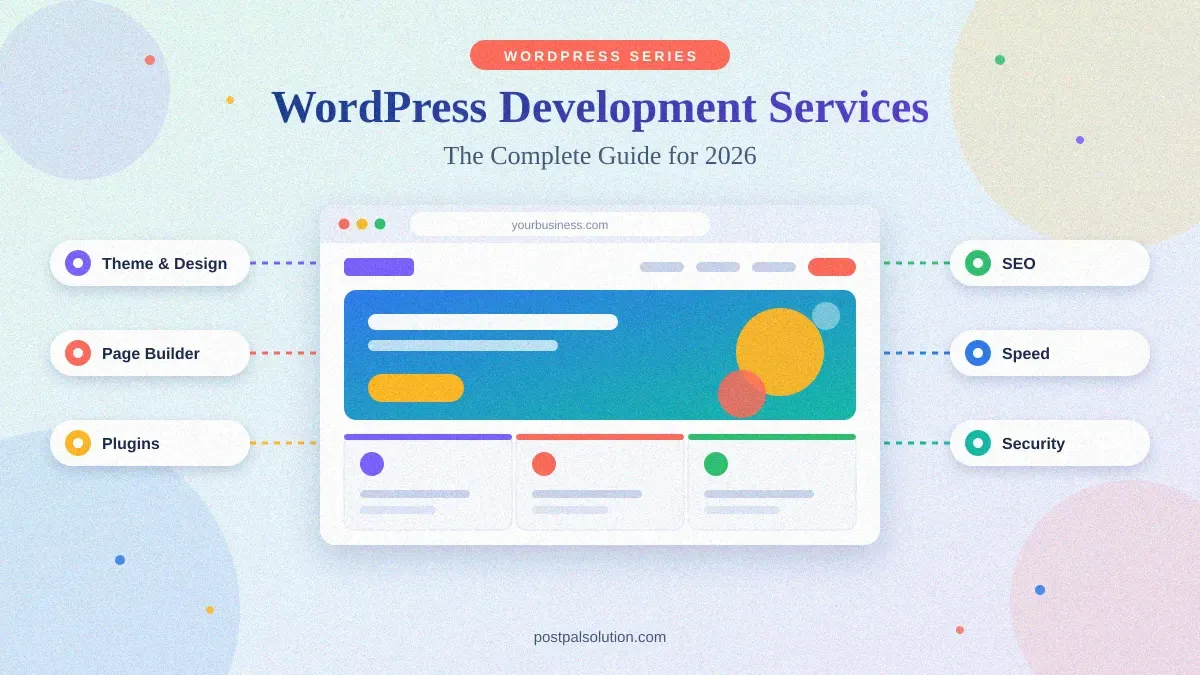
WordPress itself is free. That surprises people, and it's the source of most of the confusion about pricing. The software is the engine. What you pay a developer for is all the work that turns that engine into a car you can actually drive. It includes picking and customizing a theme building the pages setting up the plugins getting the SEO right making sure the site is secure and ensuring you can edit the site yourself after it’s done. That’s what makes the difference.
There's a real gap between a raw install and a built site. A fresh installation provides you with a dashboard and a standard theme. A built website gives you a style that reflects your brand pages created based on what your customers are looking for backups working without you even noticing and a setup that search engines can understand right from the start.
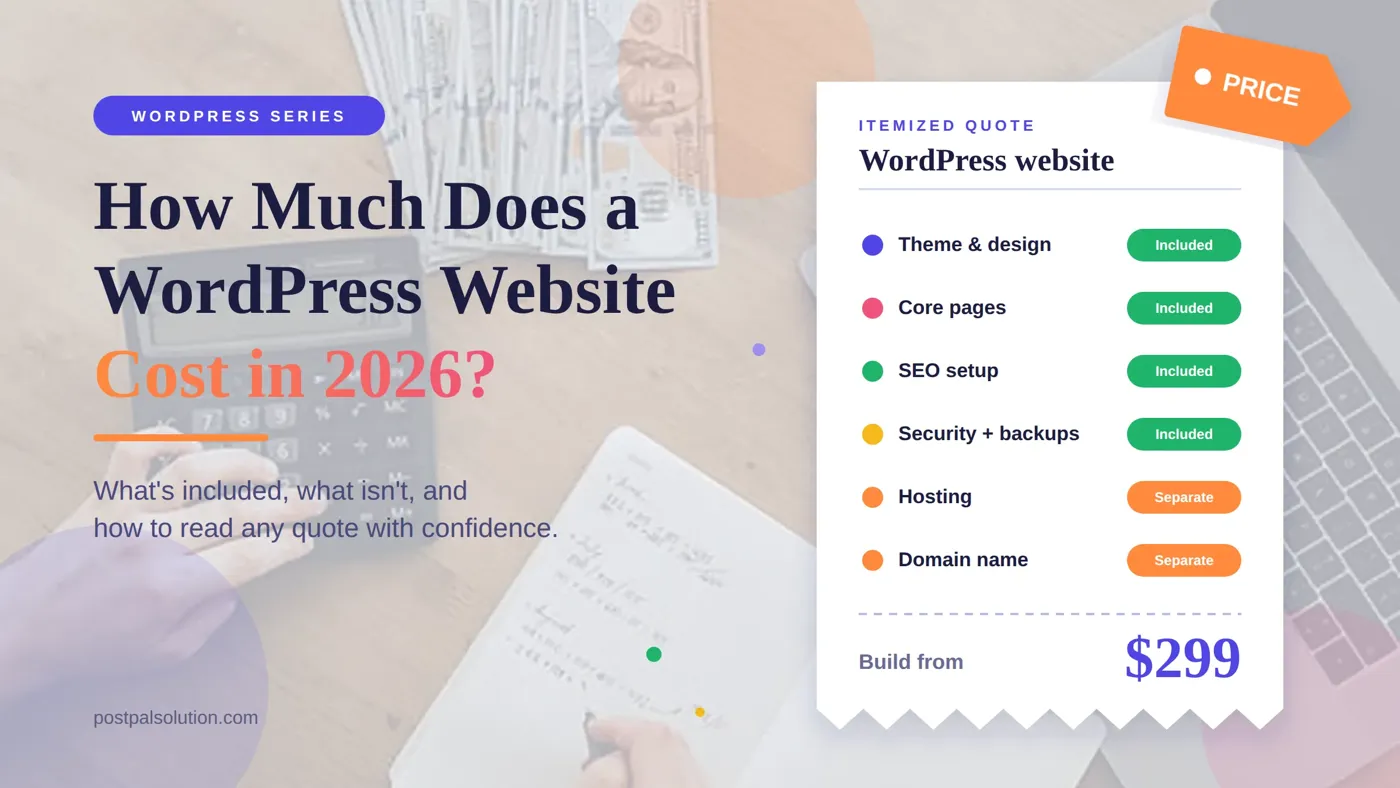
Some costs are not included in the build. You’ll need to pay for hosting your domain name and yearly licenses for premium plugins. A good developer will tell you exactly which ones you need before handing over the site. It helps to think of the thing in layers. Your content is right, in the middle.

Is WordPress the Right Choice for Your Business?
Many businesses think WordPress is helpful. WordPress is good to use when your content changes a lot. WordPress allows you to change pages by yourself without needing to pay a developer. WordPress can launch in days or weeks of months. It also helps that so many developers know the platform. You're never stuck depending on one person who's the only one who understands your code.
It's not a fit when the site is mostly software. Think custom quote builders, booking systems or anything that needs real-time interaction. You can try to make plugins handle these things. It usually ends up being unstable and hard to maintain. For that kind of project, a custom build is the honest answer, which is why we also build .NET web applications.
We compared both routes properly in Custom Website vs WordPress, and Web App vs Website helps if you're not sure which side of the line your idea sits on.
Types of WordPress Websites
Most WordPress projects fit into one of four types. Understanding which one you are working on changes every choice that comes next.
Business and service websites
The classic. Five to ten pages that explain who you are, what you offer and how to get in touch. Home, about, services, blog and contact cover most small businesses, and it's exactly the structure our Basic package is built around.
Blogs and content sites
Publishing is what WordPress was born for. If articles are your main asset, you need clean categories, fast pages and an editor your writers enjoy using. Structure matters more than fancy design here.
Lead generation sites
Every page should be built to get an enquiry. That means having calls, to action forms that actually send to a real person and ideally connecting to a CRM so leads don’t sit in an inbox and disappear. Our redesign case study shows how those improvements get measured.
Online stores
WooCommerce turns a WordPress site into a shop. It is powerful. It is heavier than a brochure site. That means it needs care, around speed and security. We go into detail about this further down.
Themes, Page Builders, and Custom Design
A theme defines the look and layout. A page builder such, as Elementor or Divi sits on top. Let’s you rearrange sections visually so changing a layout later does not mean opening any code. With a theme you are stuck inside the preset layouts. With a builder, you can move things around yourself.
A premium theme is a perfectly sensible starting point for a first site, as long as it's customized to your colors, fonts and content instead of left in demo mode. Custom builder design costs more but gives you something that doesn't look like the next business's website. Be honest about which one your brand really needs.
Builders have a downside too. Large layouts can slow pages down. The build needs some care. If your logo and brand colors are not settled yet sort that out first because rebuilding a site around a rebrand is an expensive way to learn the lesson. Our guide to graphic design and branding services explains what to have ready, and Elementor vs Divi vs Premium Themes compares the options side by side.
Plugins: What to Use and What to Skip
Plugins are what make WordPress flexible, and also what make it fragile. Every plugin is somebody else's code that needs updating forever. The goal isn't zero plugins. It's one good plugin per job.
Four jobs cover business sites: search engine optimization, security with backups, speed and caching and forms. Anything, beyond that should have to earn its place.

Skip anything that's been abandoned (check when it was last updated), anything that duplicates another plugin, and above all pirated "nulled" themes and plugins. They're cheap for a reason, and the reason is usually malware. Delete what you don't use. A deactivated plugin still sits on your server, waiting to become a problem.
WordPress SEO Setup That Actually Matters
Installing Yoast is not SEO. Configuring Yoast is SEO. The difference is in small choices. How page titles are written matters. Whether URLs read like words matters. How headings are arranged matters. Whether the XML sitemap is submitted matters. Whether images have alt text matters. Whether structured data is, in place matters.
Then comes the one that catches somebody out every year. WordPress has a setting that asks search engines not to index your site. It's handy while you're building and disastrous if it's still ticked at launch. Check it. Then check it again.
Set expectations, too. A well-built site gives search engines something to work with, but rankings take time, and our piece on how long SEO results take is honest about the timeline. The complete SEO guide covers what to do once the foundations are in, and our free Meta Tag Generator and Schema Markup Generator help you write titles and structured data yourself. If you'd rather hand it over, there's our SEO optimization service, and WordPress SEO Setup walks through the pre-launch checklist.
Speed and Core Web Vitals on WordPress
Slow WordPress sites are almost always slow for ordinary reasons. Huge uncompressed images. Too many plugins. A heavy page builder layout with six sliders nobody asked for. Cheap hosting that shares a server with half the neighborhood.
The fixes are mostly unglamorous: compress images before they go live, set up caching, minify code, remove what you don't need, and don't skimp on hosting. That's the same checklist behind the speed work in our Growth package. Google measures the result through Core Web Vitals, which look at how quickly the main content loads, how fast the page responds, and whether things jump around while it loads.
Speed is super important on phones and, in stores. A few extra seconds can really hurt sales. How to Speed Up a WordPress Website goes through it step by step.
Security, Backups, and Maintenance
WordPress core is well maintained. Most security issues in the world happen because of old or badly made plugins and themes. They also come from passwords and not keeping things up, to date. In words the same old problems are simple to avoid.
The basics: keep the core, themes and plugins updated. Use unique passwords and enable two‑factor login. Limit the number of login attempts. Remove anything that is not needed. Install software, from trusted sources. Run an SSL certificate. Then assume that something might still go wrong so keep backups. If an update breaks the site or if someone deletes the page a backup lets the site restore yesterday’s working version instead of starting all over.
Maintenance is the part people forget to budget for. Our guide to website maintenance and support packages explains what a proper plan includes, and WordPress Security covers the protection side in more detail.
WooCommerce: Selling Online with WordPress
WooCommerce is a plugin that lets you add a shop, to WordPress. WooCommerce gives you products, a cart, checkout, payment gateways, shipping and tax settings. For small and mid-sized stores, it's a sensible choice because you own the store and can grow it gradually.
Two things are worth knowing. You don't have to decide on day one, because WooCommerce can be added to an existing WordPress site later without a rebuild. And shops get slow quickly when nobody optimizes them, which is why speed work sits inside our Growth package, which sets up to 50 products at delivery.
For realistic numbers across platforms, see our e-commerce website cost and timeline guide, and WooCommerce Store Setup covers what to sort out before you launch.
How Much WordPress Development Costs in 2026
Here's the part everyone skips to. We’ll keep it real. Use our own published prices. These are starting prices and your final scope is confirmed before we start working.
|
Package |
From |
What you get |
Timeline |
|
WordPress Development Basic |
$299 |
Premium theme customized to your brand, 5 core pages, Yoast SEO configured, security plugin with daily backups |
5 to 7 days |
|
WordPress Development Growth |
$749 |
Custom Elementor or Divi design, up to 12 pages plus a blog, WooCommerce for up to 50 products, CRM-connected lead forms, speed optimization, advanced SEO, 3 revisions, 30 days of support |
Agreed before work begins |
|
Web Development Growth |
$899 |
WordPress-managed site with up to 15 pages, blog, lead capture, custom brand design, Core Web Vitals focus, 3 revision rounds, 30 days of support |
Agreed before work begins |
What makes the price go up: pages, more products, a fully custom design instead of a premium theme integration, like a CRM moving content from an old site and anything that needs genuine custom code. What sits outside the build: hosting, your domain, and annual premium-plugin licenses, which we list for your specific project before delivery.
For wider market context, see how much custom web development costs in 2026, and how long it takes to build a business website covers timelines. You can also try our free Website Cost Calculator, browse the full pricing page, or read How Much Does a WordPress Website Cost in 2026? for a deeper dive.
WordPress Development Basic vs Growth: Which One Fits?
The short version. Choose WordPress Development Basic if you're launching your real site you know roughly which five pages you need and you mainly want something credible, findable and safe. Choose WordPress Development Growth if you want a design thats yours a store forms feeding a CRM or more, than five pages.
Growth also suits a WordPress site that's gone tired, since it can redesign your existing site and move your content into the new design. If you want a larger WordPress-managed site with up to 15 pages built around lead capture, Web Development Growth is the closer match. The full range sits on our WordPress Development page, and WordPress Development Packages Explained compares the two WordPress packages side by side.
How to Choose a WordPress Developer
Ask to see live WordPress sites they've built, not screenshots. Ask who owns what at the end: your website domain, your hosting account and your admin login details should be in your name with you having control. Ask what happens after the website is launched how updates and backups will be. Which licenses you need to renew. Make sure to get the number of revision rounds and the length of support, in writing and ask for a handover session so you can edit your pages.
Walk away if someone offers pirated themes. Walk away if they refuse to give you access. Walk away if they quote a price that's far below everyone else without explaining what’s missing. Cheap isn’t always bad. Unexplained cheap usually is. Our guides on choosing a web development agency and freelancer vs agency go deeper on the red flags and the trade-offs.
Common WordPress Mistakes That Cost Businesses Leads
After enough builds, you start noticing the same slip-ups. These are the ones that quietly cost businesses enquiries:
- Launching with the "discourage search engines" box still ticked.
- Stacking plugins until the site crawls.
- Uploading full-size photos straight from a phone.
- Skipping backups until the day they're needed.
- Burying the contact form, or never testing that it actually delivers.
- Not owning your own hosting and domain accounts.
None of these is hard to avoid. They just need somebody to remember them.
What Happens After Launch: Support and Updates
Launch day is not the end. Someone needs to keep the engine updated check that backups are working and make sure forms still work. Our Growth packages include 30 days of support after launch. You get a walkthrough so you can edit pages yourself. After that you can do updates on your own. Give them to a maintenance plan. If your current site is already years old and having trouble our guide to signs it's time for a redesign helps you decide whether to fix it or rebuild.
Conclusion
WordPress isn't magic. It isn't a shortcut. It's a platform that gives good results when you put in a little effort. Choose what kind of site you want to create limit the number of plugins you use pay attention to SEO, speed and security from the beginning and make sure you have control, over your own accounts. Do that, and our café owner ends up with a website that works while she's wiping tables. If you'd like help getting there, start with our WordPress Development page, or check the pricing and we'll scope it with you.
Disclaimer
This guide is for information only. Prices, timelines and recommendations are based on 2026 projects and the published package details, from PostPal. Your specific scope hosting needs and plugin requirements may change these factors. This guide is not a quote and does not guarantee any results. Always speak with a developer before starting your project.